In partnership with

Hey folks,

In the last week, how many times did you tell someone "I'll send that over," "I'll follow up," or "let me get back to you on that"? Now, how many of those did you actually do?

Most of us make commitments all day long across Google Chat, Slack, email, and docs. They're scattered everywhere, and there's no single place to check whether you followed through. So things slip. Someone chases you up. You scramble.

I'm going to show you how to connect Claude to your Slack, Gmail, and Google Drive so it can search across all three at once. The setup takes about three minutes. Once it's done, you can ask Claude to find every promise you've made in the past weeks and flag the ones you haven't delivered on yet.

I call it the "What Did I Promise?" audit, and it's the most useful thing I've built with Cowork so far. Soon, you'll have it running too.

Let’s dive in..

Together with Mintlify

Stop Chasing Docs. Automate Them.

Docs piling up faster than you can write them? Same.

Every team knows the feeling — product ships, docs don't. Changelogs get forgotten. Style violations quietly accumulate. Broken links go unnoticed for months.

Mintlify's new Workflows feature fixes this. Define automation rules, and the agent handles the recurring maintenance work for you — on your schedule, by your rules.

Draft docs when a PR merges. Generate changelogs every Friday. Run a style audit on every push. Flag translation lag before it becomes a problem. Each workflow is version controlled, fully configurable, and fits into your existing review process.

You decide when it runs, what it checks, and whether changes get committed directly or opened as a pull request for review.

The result: documentation that actually keeps up with your product, without someone manually chasing it down.

Why I stopped copy-pasting into Claude

I used to spend the first 10 minutes of every Claude session just feeding it context. Open Chat or Slack, find the thread, copy it. Open Drive, find the doc, copy that too. Paste everything into Claude for context.

Connectors skip that loop. You say "summarize what happened in #product-updates this week" and Claude reads the channel directly. You say "find the latest version of the Q2 roadmap in Drive" and Claude searches your files.

If you're curious what's under the hood: Connectors run on something called Model Context Protocol (MCP). It's an open standard that lets AI tools talk to external apps securely. You don't need to understand MCP to use Connectors, just like you don't need to understand HTTP to browse the web. But the name is worth knowing because the ecosystem is growing fast.

What you need:
✓ Claude Pro, Team, or Enterprise account
✓ Claude desktop app with Cowork enabled

Best for: Anyone who works across multiple tools. If everything you do happens inside one app, Connectors won't add much. If you spend half your day switching between Slack, Gmail, Drive, or Jira, this is for you.

What Did I Promise? Connect 3 tools

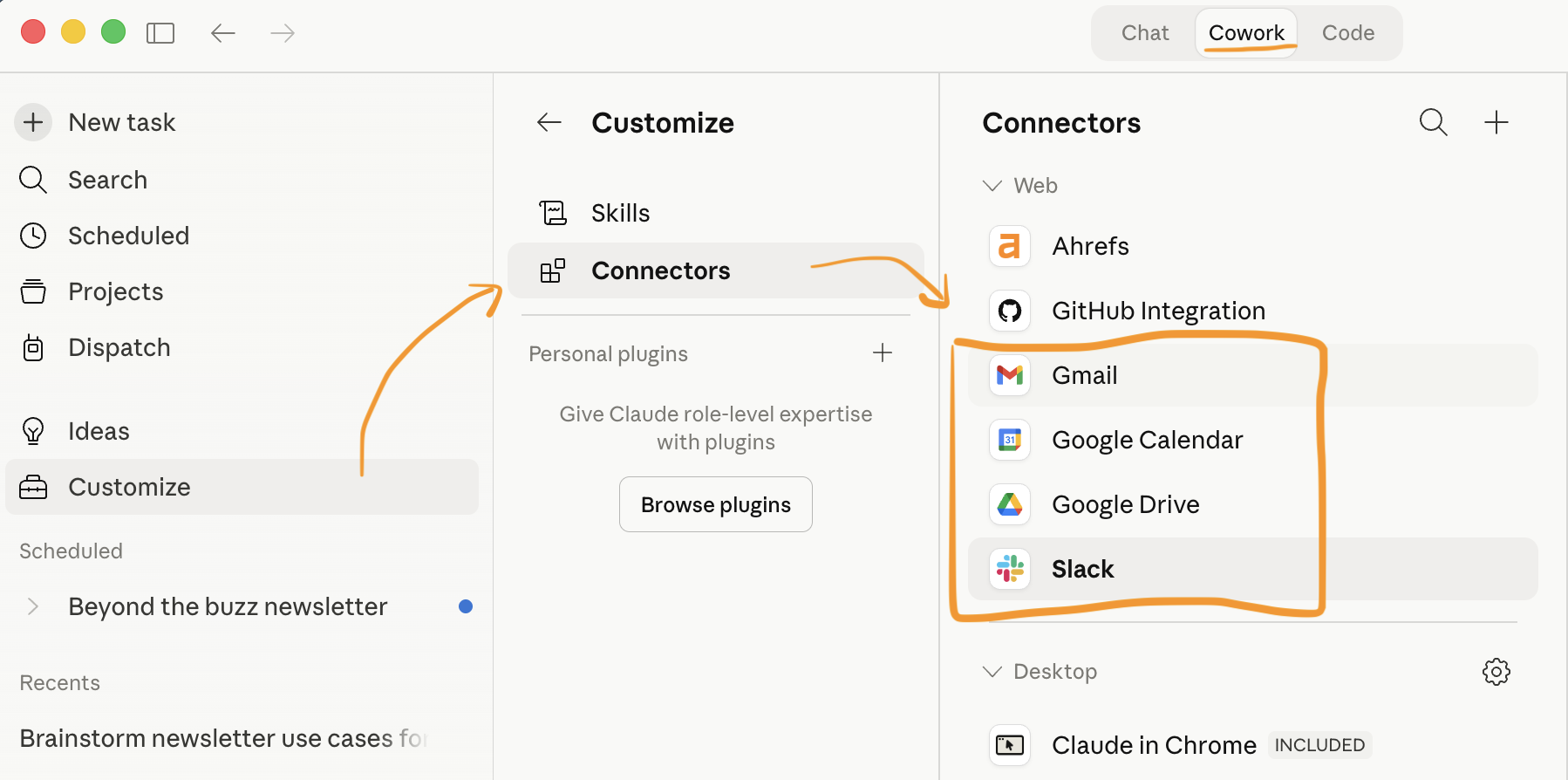
Claude desktop sidebar showing Customize > Connectors

Instead of connecting one tool and kicking the tires, we're going to connect three and build something useful by the end of this section. The goal: a workflow that searches your Slack messages, Gmail, and Google Drive to find every commitment you've made in the past two weeks, so nothing slips through the cracks.

I call it the "What Did I Promise?" audit. But first, the tools need to be connected. Each one takes about 60 seconds.

Connector 1: Slack

In Claude desktop, click Customize in the sidebar, then click Connectors. You'll see a list of available integrations (50+ right now).

Click the + button. Search for Slack. Click Add.

Claude redirects you to Slack's OAuth screen. Sign in, pick your workspace, approve the permissions. About 15 seconds.

That's it. The connector stays active across sessions. You do this once.

Quick test — open a new Cowork session and try:

What were the main topics discussed in #general this week?

If Claude pulls back real messages and summarizes them, you're connected. If it says it can't access Slack, double-check that you approved the right workspace.

Watch out: Claude can only see what you can see. If you don't have access to a private channel, neither does Claude. Your existing permissions carry over, which is the right call.

Connector 2: Gmail

Same process. Customize → Connectors → + → Gmail → Authenticate with your Google account.

Gmail is where a huge number of commitments live. You reply "I'll send that over by Friday" and it disappears into a thread you never reopen. Connecting Gmail lets Claude search your sent messages for exactly these kinds of promises.

Quick test:

Show me the last 5 emails I sent that contain the word "follow up"

Watch out: Gmail access means Claude can read your email. Think about which Google account you connect. If you use one for both personal and work, that's worth a pause.

Connector 3: Google Drive

Customize → Connectors → + → Google Drive → Authenticate with your Google account.

Drive is where the deliverables live. When you promise someone a doc, a deck, or a spreadsheet, this is where it ends up (or where it should end up). Connecting Drive lets Claude check whether you actually created the thing you said you would.

Quick test:

Find the most recent document in my Drive that mentions "Q2 planning"

Claude searches your Drive files (Docs, Sheets, Slides, PDFs) and pulls the relevant content directly.

Pro tip: Be specific about what you're looking for. "Find my files" is too broad. "Find the budget spreadsheet I edited last Tuesday" gives Claude a clear target.

Now put them together: The "What Did I Promise?" audit

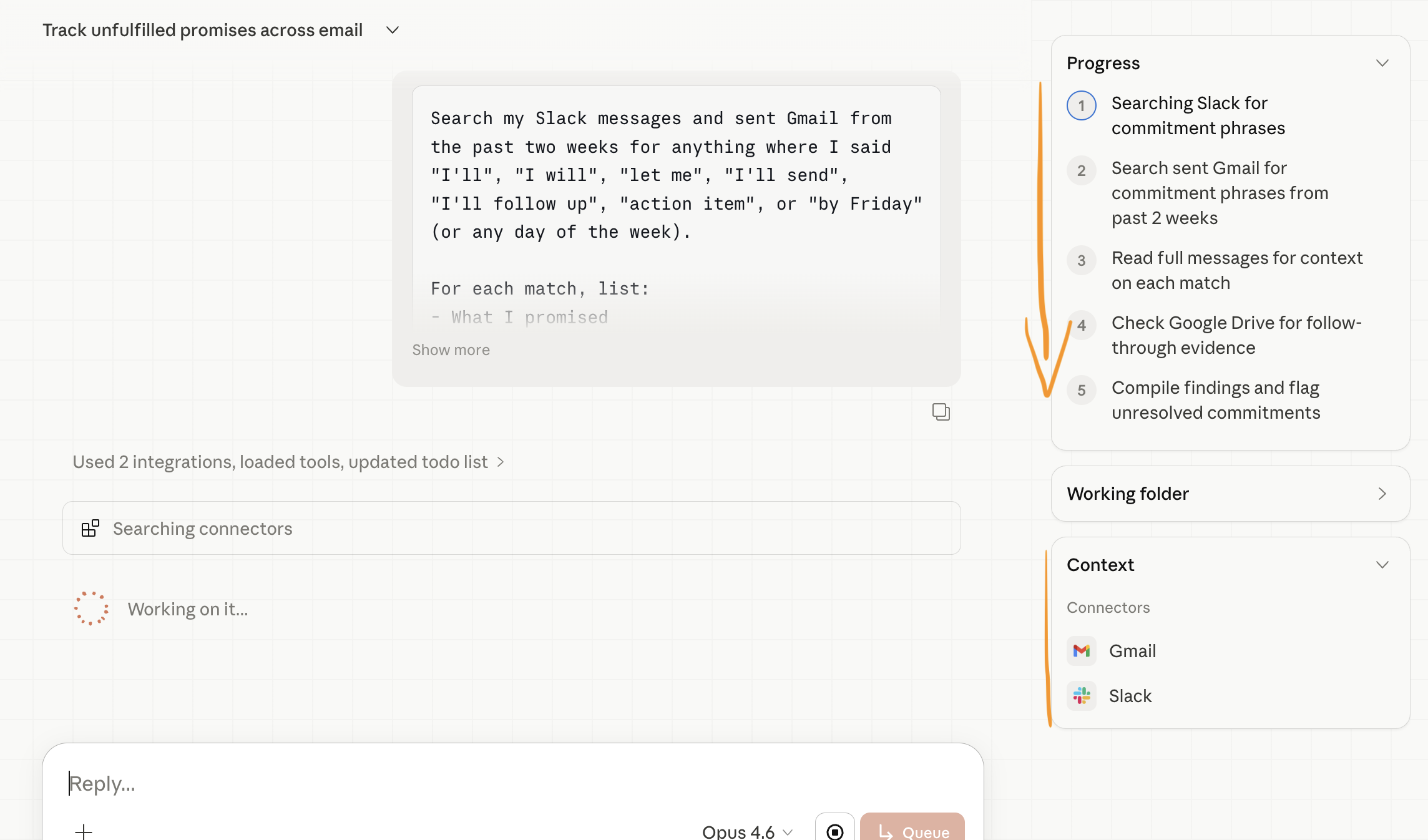
What Did I Promise audit in action

All three connected? Good. This is the payoff. Open a new Cowork session and paste this:

Search my Slack messages and sent Gmail from the past two weeks for anything where I said "I'll", "I will", "let me", "I'll send", "I'll follow up", "action item", or "by Friday" (or any day of the week).

For each match, list:
• What I promised
• Who I was talking to
• The date
• Whether there's a matching file in my Google Drive that suggests I followed through

Flag anything that looks unresolved.

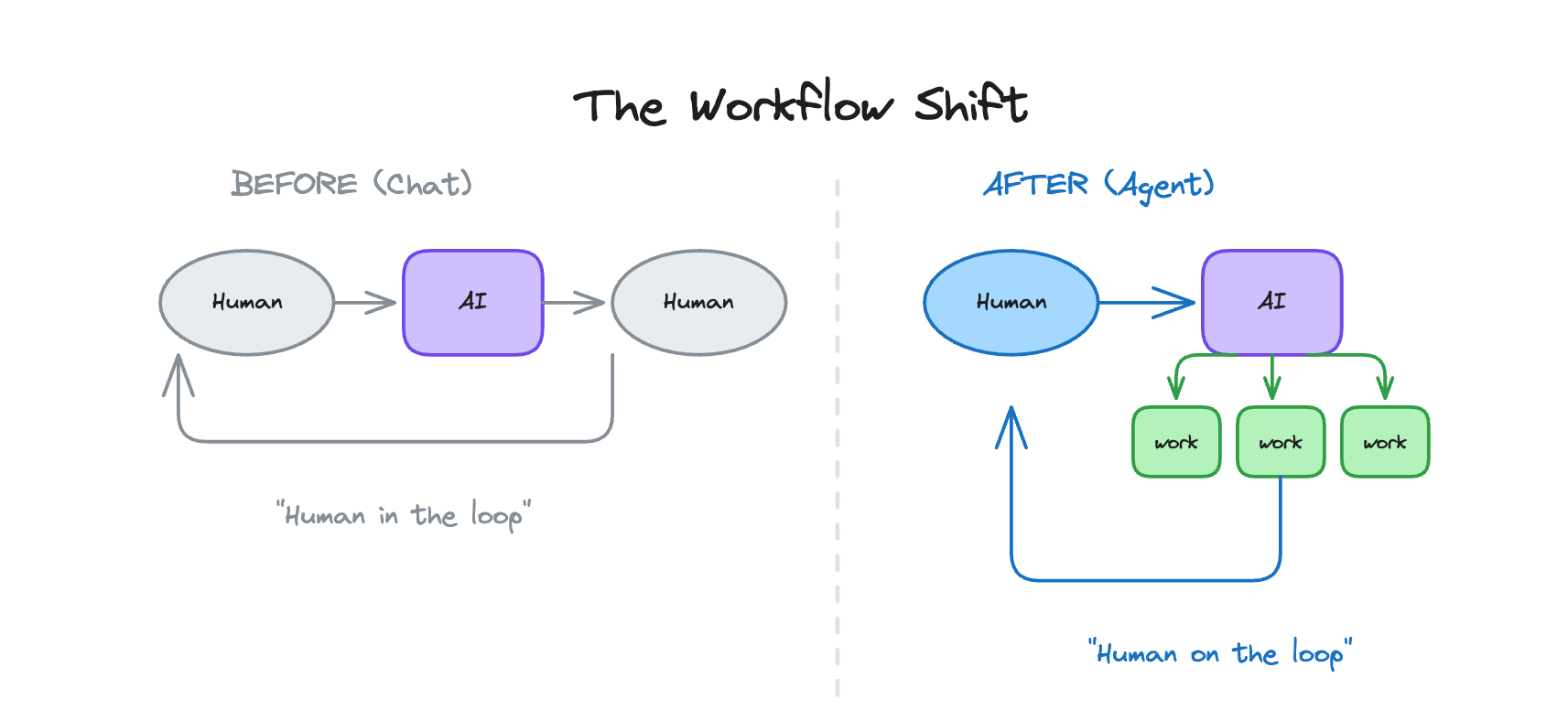
Before: Those commitments are scattered across Slack threads and email chains. You remember some of them. You forget others until someone chases you up.

After: A single list of everything you've committed to, with a check on whether you've delivered. Run this every Friday and you'll never be the person who drops the ball.

This is why we connected three tools instead of one. Each tool on its own is useful. Together, they give Claude enough context to do something you'd never bother doing manually.

5 workflows I use every week

Connecting the tools is step one. Knowing what to ask once they're connected is where it gets good. These are five prompts I run most weeks. Each one killed something I used to waste time on.

1. The Monday morning catch-up

Check Slack channels #product, #engineering, and #design for anything I missed over the weekend. Give me a summary organized by channel with any decisions made and action items assigned to me.

Before: Scrolling three channels, skimming 200+ messages, trying to figure out what matters.
After: A summary in 30 seconds. I scan it over coffee and know exactly where I stand.

2. The meeting prep brief

I have a meeting with [person/team] in 30 minutes. Pull their latest updates from Slack, find any relevant docs in Drive, and check my Gmail threads with them for anything unresolved. Give me a one-page brief with talking points.

Before: 15 minutes of tab-switching and frantically making notes.
After: A brief that makes you look like you've been paying attention all week. (Even if you haven't.)

3. The weekly status report

Look at what I posted in Slack this week, what docs I edited in Drive, and what I sent via Gmail. Draft my weekly status update using my usual format.

Before: Friday afternoon, staring at a blank doc, trying to remember what you did on Tuesday.
After: A draft that captures stuff you'd forgotten about. I usually just clean up the wording and hit send.

4. The competitive intel sweep

Search my Drive for any docs mentioning [competitor name]. Also check Slack for recent conversations about them. Compile what we know into a single briefing doc.

Before: Digging through scattered files and old Slack threads for an hour.
After: Everything you have on a competitor, in one doc, in about a minute. It's not perfect, but it's 90% there and you'd never have bothered doing it by hand.

5. The email + Slack follow-up closer

Check my sent Gmail and Slack messages from the past week. Find any where I asked someone a question or requested something and haven't received a reply yet. Draft a short, friendly follow-up for each one.

Before: Trying to remember who you're still waiting on. Usually you don't remember until it's too late.
After: A list of open loops with ready-to-send nudges. I run this every Thursday so people have Friday to respond before the week ends.

What most people get wrong

1. Connecting everything at once

I tried this. Added Slack, Drive, Gmail, and Jira in one go. Then when Claude gave me a weird answer, I had no idea which connection was the problem. Start with the three we walked through above. Get comfortable with how Claude handles that data before adding more.

2. Asking vague questions

"What's in my Slack?" is like asking a librarian "what's in the library?" Be specific: which channels, what time period, what you're looking for. Claude can search across connected tools, but it still needs direction.

3. Confusing Connectors with MCP servers

Connectors are the one-click integrations built into Claude's interface. MCP servers are the underlying protocol that powers them. You can also set up custom MCP servers for tools that don't have a built-in connector yet, but that's a developer task. If you're not technical, stick with Connectors. They cover 50+ tools and you don't need to touch any code.

4. Forgetting about permissions

Claude inherits your access level. If you connect your personal Google Drive, Claude sees your personal files. If you connect your work Slack, Claude can read channels you have access to. Think about which accounts you connect, especially on shared machines.

5. Not combining Connectors with Skills

This is the thing I wish I'd figured out sooner. A Connector gives Claude access to your data. A Skill tells Claude what to do with that data. Once I built a Skill that says "run my 'What Did I Promise?' audit every Friday morning," I just open Cowork and it runs. No prompting. Connector + Skill is where this really starts to pay off.

Pro tip: If a tool you need isn't in the Connectors list, search the MCP registry. The open-source community has built 200+ MCP servers covering databases, CRMs, project management tools, you name it. A lot of them work with Cowork. Ask Claude to help you set one up.

Try this in 10 minutes

Connectors workflow

If you followed the step-by-step above, you've already done this. If you skipped ahead, here's the short version:

Open Claude desktop. Go to Customize → Connectors → +. Connect Slack, Gmail, and Google Drive. Three tools, about three minutes total.

Then paste the "What Did I Promise?" prompt from the Blue section above and see what comes back.

You'll probably be surprised by what comes back. There's always at least one "oh no, I completely forgot about that" in the list. Better to find it yourself on a Friday than have someone chase you on a Monday.

Once you've run it once, mess with the prompt. Narrow it to one project. Stretch the time window to a month. Ask Claude to sort by urgency. Make it yours.

👉 Know someone drowning in AI news? Forward this to them or send your unique referral link

Cheers, Tim

Keep Reading