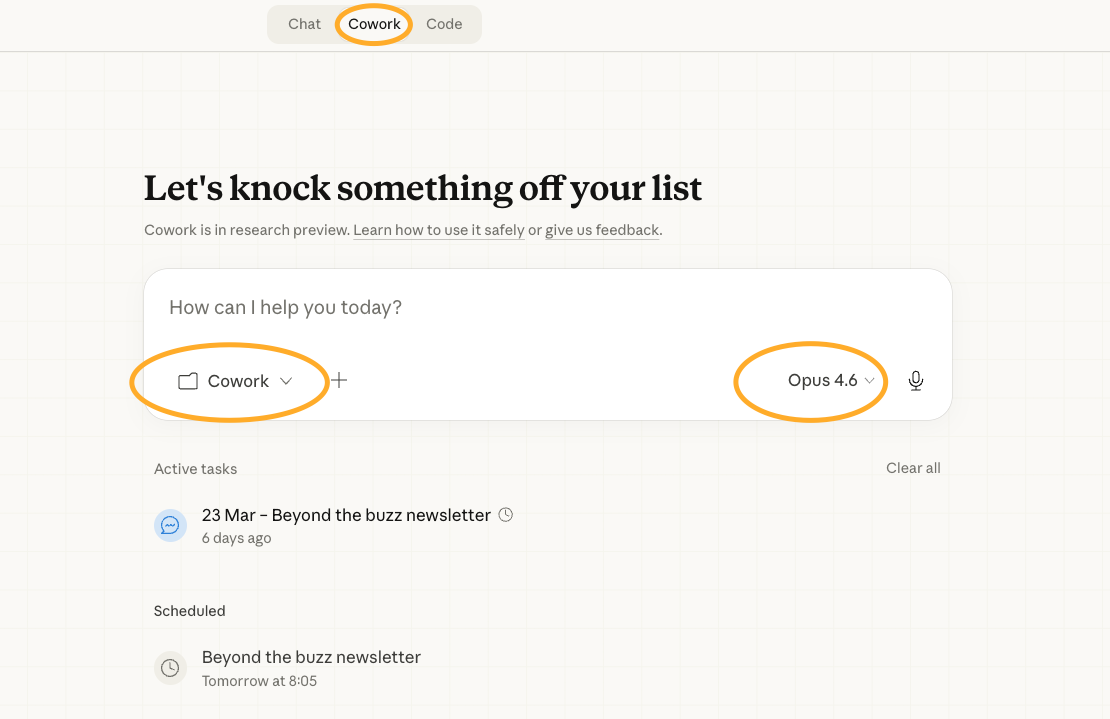
Hey folks,

I've watched people install Cowork, dump random files into it, and wonder why Claude keeps asking for context it should already have.

The problem isn't Cowork. It's the setup.

Most tutorials show you what Cowork can do: browse your files, write documents, run plugins. What they skip is the setup that makes those features actually work. For context these are the current Claude products:

  1. Claude Chat → similar to ChatGPT.

  2. Claude Projects → still Claude Chat, but individual projects.

  3. Claude Code → the boom for developers to bring code to life quickly

  4. Claude Cowork → similar to Claude Code, but with a nice user interface for everyone to be able to control.

Today I'm giving you the exact folder structure, context files, and configuration that turns Cowork from "fancy chatbot with file access" into an assistant that actually knows your work.

Then it just works.

Let’s dive in..

Together with UseKase

Ship Your 1st App In 48 Hours​

Ready to turn an idea into a real, live app? Join us for two focused evenings where you’ll build and deploy your first application using AI. No coding background needed.

​​In this hands-on, in-person hackathon, we cut through the fluff and focus on shipping. You’ll go from concept to a deployed app with a real URL in just two evenings. You’ll learn an AI-first way of building products that actually works.

👥 Who This Is For

  • ​​You don’t need to be a developer. You just need curiosity and a laptop.

  • ​​Aspiring builders with ideas they’ve never shipped.

  • ​​Product managers and designers who want to prototype without waiting on engineers.

  • ​​Career switchers exploring tech through hands-on building.

  • ​​Founders who want to validate ideas quickly.

Discount Code: Use BTB upon checkout for a 20% discount

What is Cowork?

Claude Cowork lets Claude read files directly from your computer. No more copy-pasting context into every conversation.

Who is this for?
Anyone doing recurring work: writing, client deliverables, research, content creation. For one-off questions, regular Claude chat is faster. Cowork pays off when Claude needs to understand your work and your voice over time.

What you need:
✓ Claude Pro account ($20/month minimum)
✓ Claude desktop app installed
✓ 30 minutes for initial setup

Limitations to know upfront:
⚠ Desktop only (no mobile or web version)
⚠ Sessions end when you close the app
⚠ Still in research preview, occasionally misreads files (~10% of the time)
⚠ Burns through usage quickly on complex tasks

The Setup (7 Steps)

Step 1: Create Your Folder Structure

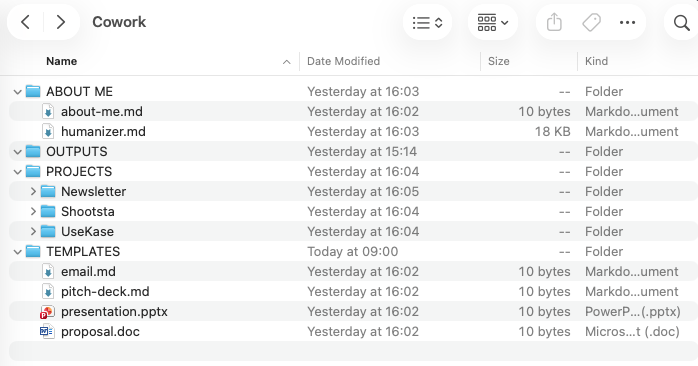
Create a dedicated folder called "Claude Cowork" with exactly four subfolders:

Claude Cowork folder structure with 4 subfolders

ABOUT ME
PROJECTS
TEMPLATES
CLAUDE OUTPUTS

This structure tells Claude exactly where to look for what.

Pro tip: Keep folder names in caps. It makes them visually distinct when Claude references file paths.

Step 2: Build Your Identity Files

Inside ABOUT ME, create two files:

about-me.md

# About Me

## Who I Am
[Your role, company, what you do]

## What I Create
[Types of content/work you produce]

## Communication Preferences
[How you like to work]

humanizer.md

Scan for these AI writing patterns and fix them: em dashes (convert to commas/periods), rule of three (lists of exactly 3 items), AI vocabulary (delve, crucial, landscape, testament, pivotal, foster, enhance, underscore, showcase), negative parallelisms ("It's not just X, it's Y"), superficial -ing phrases, promotional language (vibrant, stunning, groundbreaking), vague attributions ("experts say"), inline-header lists with bold labels and colons, and excessive hedging. Replace "serves as" and "stands as" with simple "is." Cut filler phrases. Remove chatbot artifacts like "I hope this helps."

Removing patterns isn't enough. Add soul: have opinions instead of neutral reporting, vary sentence length and rhythm, acknowledge uncertainty when you feel it, use first person naturally, and be specific about feelings rather than vague ("there's something unsettling about X" beats "this is concerning"). Perfect structure feels algorithmic. Let some mess in.

Download the Humanizer

This is the difference between generic AI output and work that sounds like you.

Watch out: Don't write a novel here. Keep each file under 500 words.

Step 3: Set Up Your Projects Folder

Inside PROJECTS, create a subfolder for each active project containing:
• A brief (what this project is, what success looks like)
• Reference materials (research, competitor examples)
• Any drafts in progress

Pro tip: Archive completed projects to a separate folder outside Cowork. Too many active projects clutters Claude's context.

Step 4: Configure Global Instructions

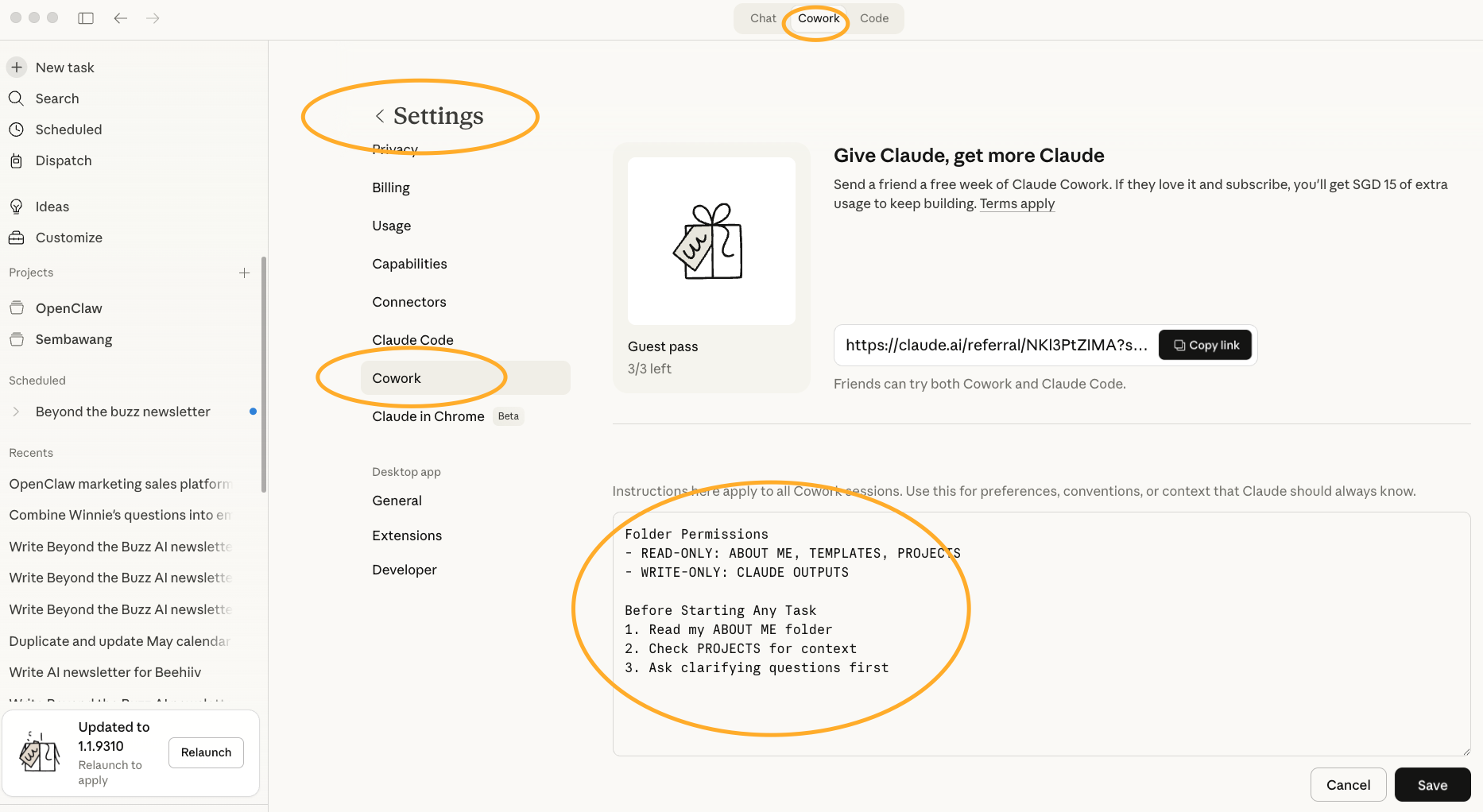
Open Claude desktop → Settings → Cowork → Edit Global Instructions. Paste rules like:

Global Instructions settings

Folder Permissions
- READ-ONLY: ABOUT ME, TEMPLATES, PROJECTS
- WRITE-ONLY: CLAUDE OUTPUTS

Before Starting Any Task
1. Read my ABOUT ME folder
2. Check PROJECTS for context
3. Ask clarifying questions first

Watch out: Start simple, add rules as needed.

Step 5: Stock Your Templates Folder

Add templates from your best work: email formats, report structures, proposal outlines. Claude can match your formats without you explaining the structure every time.

Step 6: Install Relevant Plugins

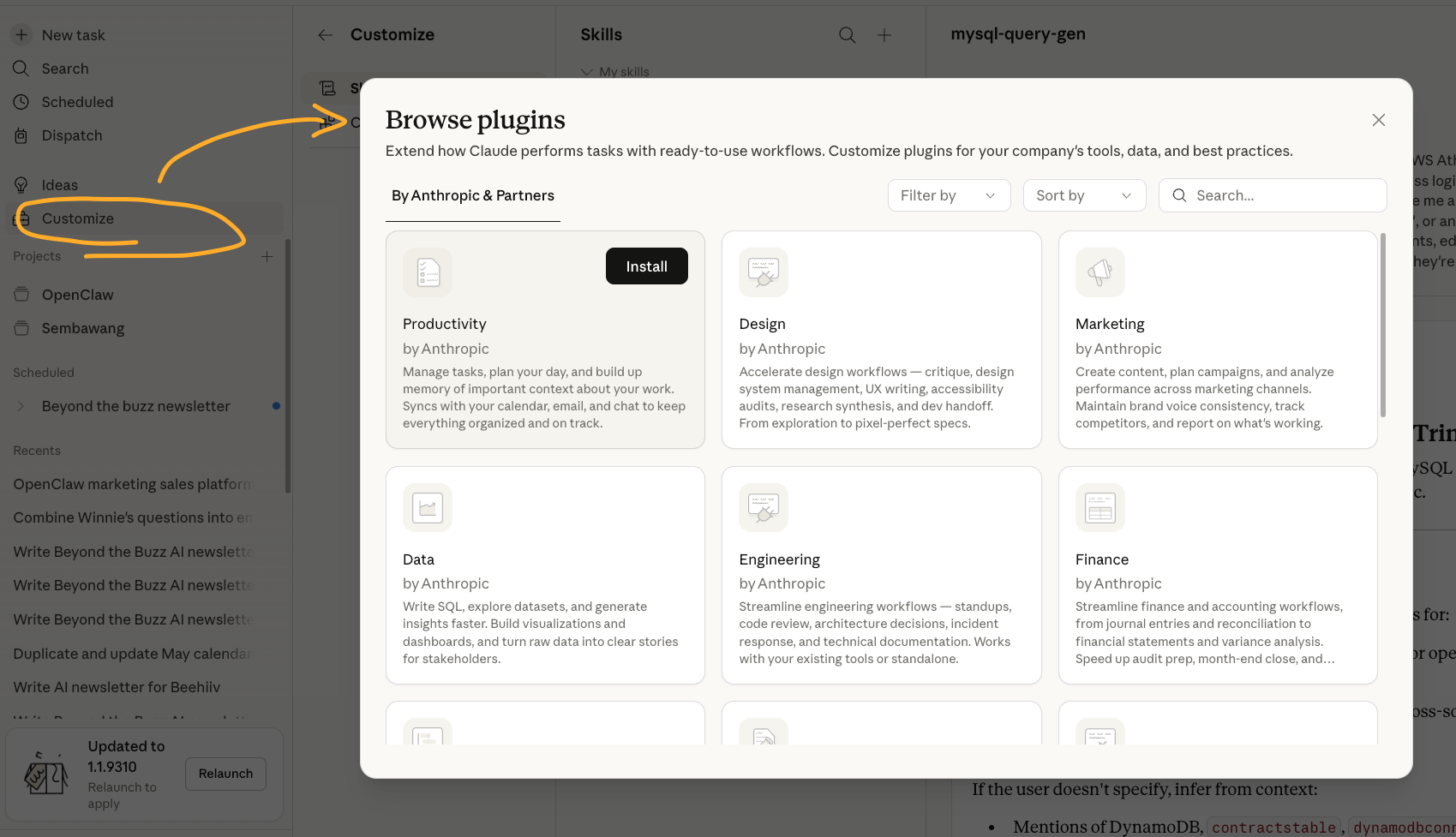
Click Customize → Browse plugins → Pick what matches your work. They're organized by category: Marketing, Research, Writing, Sales.

Cowork plugin browser

Pro tip: Start with 2-3 plugins max. Too many creates confusion about which tool to use when.

Step 7: Use the Universal Prompt Pattern

Instead of lengthy instructions, use this pattern:

I want to [TASK] for [SUCCESS CRITERIA].

First, explore my CLAUDE COWORK folder.
Then ask questions. I want to refine
approach before execution.

Claude asks clarifying questions before doing anything. You'd be surprised how much this improves the final result.

Pro tip: Save this as a Mac text replacement. Type ,,cowork and it auto-expands.

How This All Connects

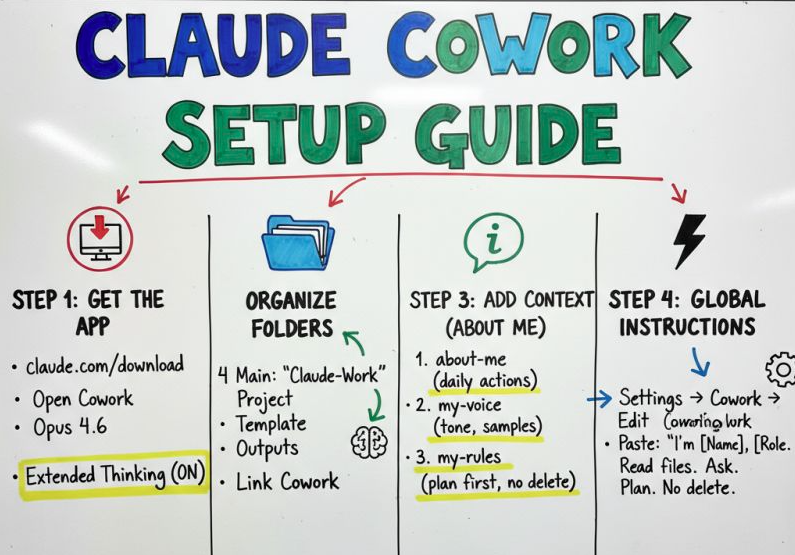
Before and after workflow comparison

Before: Every conversation starts from zero. You paste context, explain your voice, describe the project. Then do it all again tomorrow.

After: You drop a brief into your PROJECTS folder and say "Write the executive summary for the Acme proposal." Claude already knows your voice, your formats, your preferences. It asks smart clarifying questions, then delivers to your output folder.

It gets better the more you use it. Context accumulates. Your TEMPLATES folder grows. Claude actually starts sounding like you.

Once working, you can also:
• Set up recurring tasks with the schedule plugin
• Create project-specific instruction files
• Build approval workflows where Claude drafts, you review, Claude revises

Try This Now

Create your ABOUT ME folder with just the about-me.md file. Write three sentences about what you do and one paragraph about how you like to communicate.

Then open Cowork and say: "Read my about-me file and tell me what you learned about me."

If Claude accurately summarizes who you are, your foundation is working.

Build from there.

Cowork in action

👉 Know someone drowning in AI news? Forward this to them or send your unique referral link

Cheers, Tim

Keep Reading