| |
|
How to build a stakeholder briefing in Gemini
|
| |
|
Step 1: Brief Deep Research like you'd brief an analyst
|
| |
|
| |
|
The single thing that determines whether you get a usable report or a generic one is the brief. Most people type a question and click run. The model gives you a question-shaped answer, which is rarely what you need for a presentation.
|
| |
|
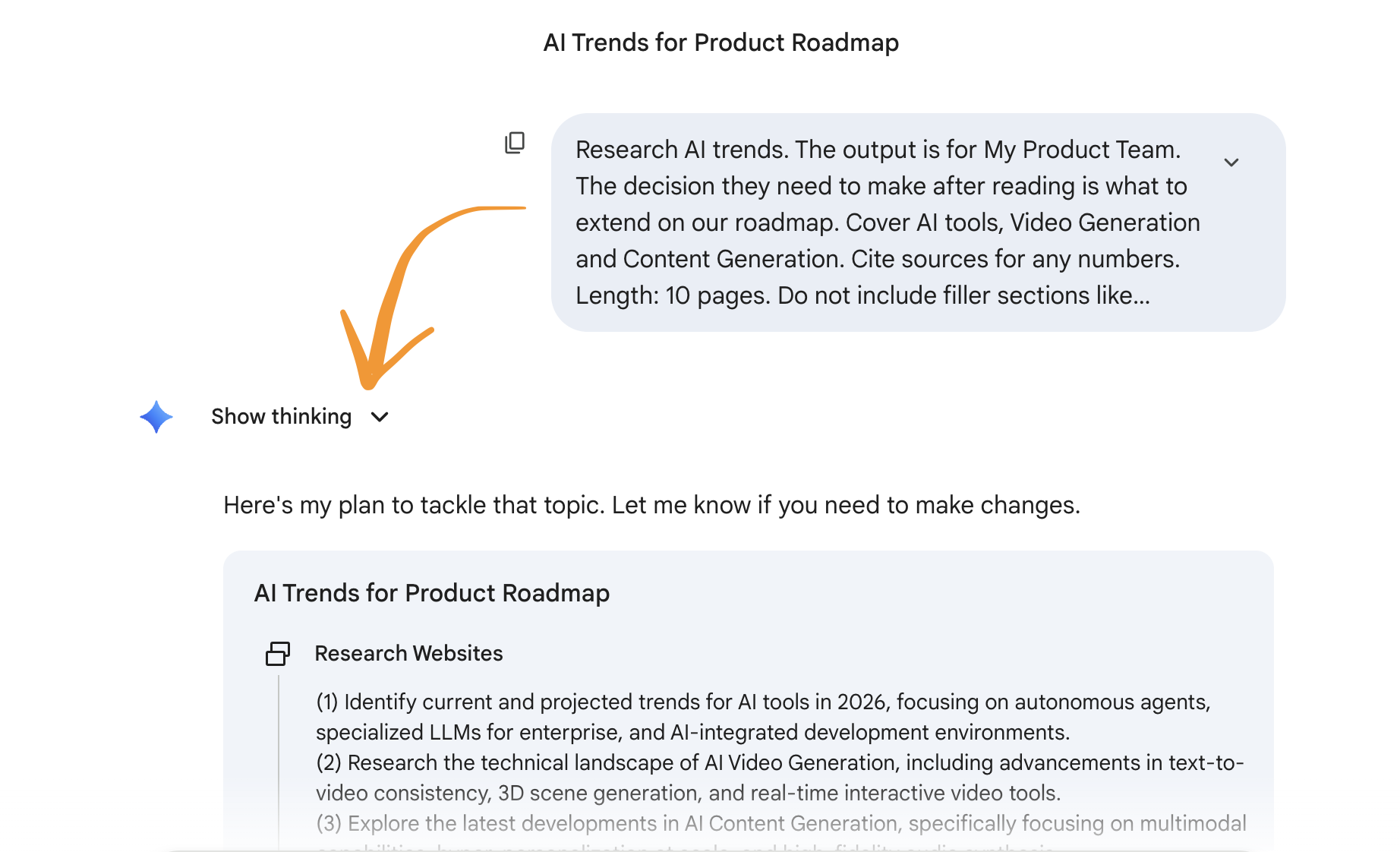
Open gemini.google.com, click the Tools icon in the chat bar, and turn on Deep Research. Then paste a brief in this shape:
|
| |
|
Research [specific topic]. The output is for [audience: my board / my product team / a client]. The decision they need to make after reading: [decision]. Cover [3 to 5 specific angles]. Cite sources for any numbers. Length: [aim for 8 to 12 pages]. Do not include filler sections like "introduction" or "conclusion."
|
|
| |
|
Deep Research will produce a research plan first. Read it before you approve. If it missed an angle that matters to your stakeholder, edit the plan before kicking off the run. Once you approve, the agent runs for 10 to 15 minutes.
|
| |
|
Pro tip: Tell Gemini who's reading this and what decision they're making. "For my board" produces tighter analysis than "make me a report on competitors." Audience anchoring is the single biggest lever.
|
|
| |
|
|
| |
|
Step 2: Read the report, mark what's worth keeping
|
| |
| |
|
After 10 minutes you'll get back a long structured report (8 to 20 pages typically). Before you do anything else, read it.
|
| |
|
This step gets skipped by people in a rush, and it's the one that protects you from presenting something wrong. Deep Research is good but it isn't perfect. It occasionally cites sources that don't quite say what it claims they say. It sometimes confuses a competitor's blog post with their official roadmap.
|
| |
|
You don't need to fact-check every line. You need to scan for the 3 to 5 claims you'll actually put on a slide and verify those. Click the citation links inline, confirm the source backs the claim, move on. 5 minutes of checking saves you from a presentation moment you'd rather not have.
|
| |
|
Watch out: Deep Research will sometimes cite Reddit threads, low-traffic blogs, or out-of-date press releases as if they're authoritative. The reports are useful, but treat them like a smart intern's first draft, not a finished document.
|
|
| |
|
|
| |
|
Step 3: Export the report to Google Docs
|
| |
| |
|
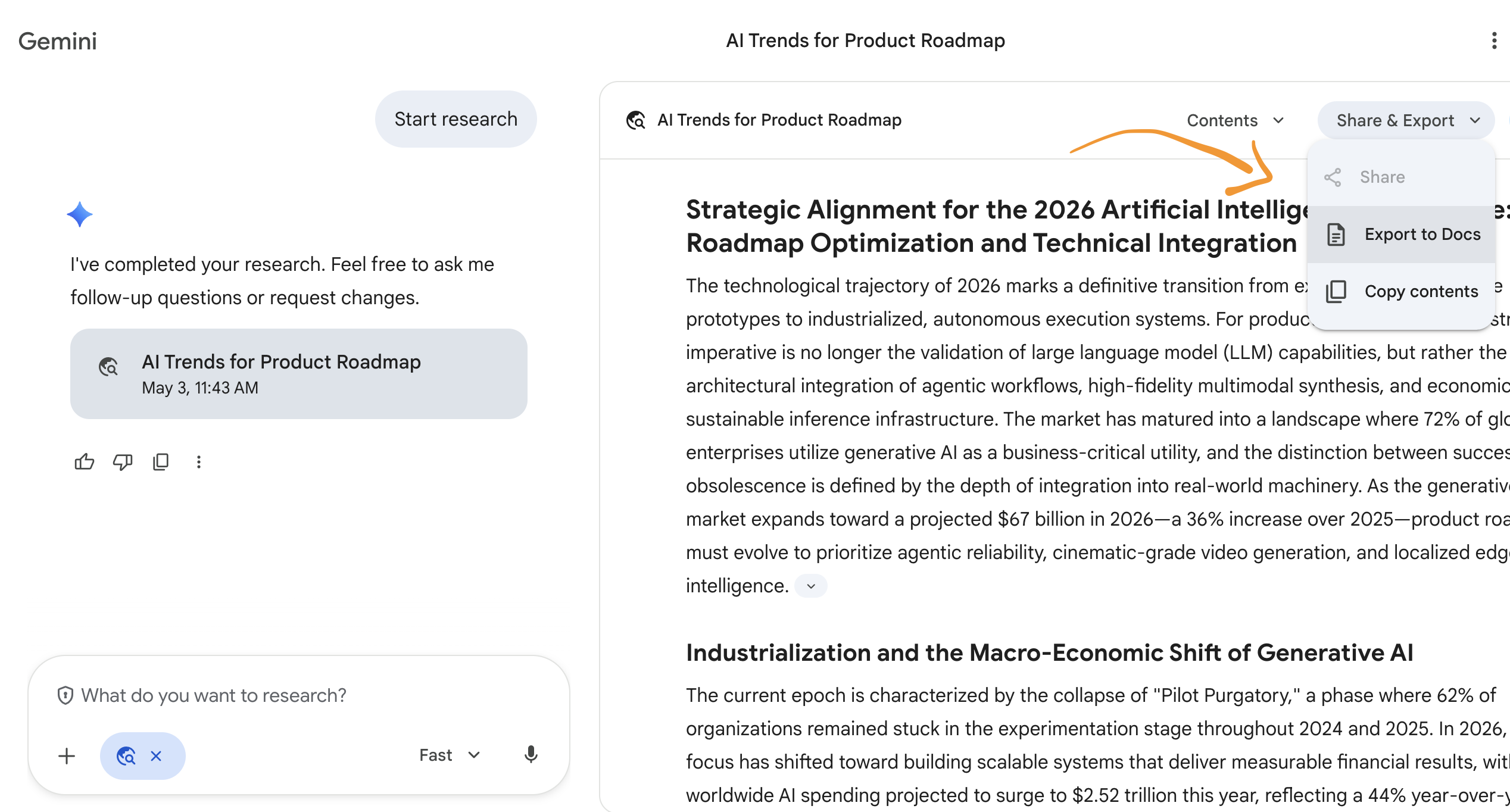
Below the Deep Research output you'll see Share & Export. Click Export to Google Docs. The report lands in your Drive with proper heading styles, working hyperlinks for all the citations, and clean formatting.
|
| |
|
Why bother with this step at all? Two reasons. First, you now have the source-of-truth document saved with citations intact, so anyone who later asks "where did this come from" has the trail. Second, Canvas works better when you give it a clean, structured Doc than when you give it a chat history. The next step depends on this.
|
| |
|
Open the exported Doc, do a final pass: trim sections you won't present, add 2 or 3 lines at the top stating the decision the audience needs to make, fix any awkward phrasing. 5 minutes. This Doc becomes the source for the deck.
|
| |
|
|
| |
|
Step 4: Hand the Doc to Canvas and ask for a slide script
|
| |
|
| |
|
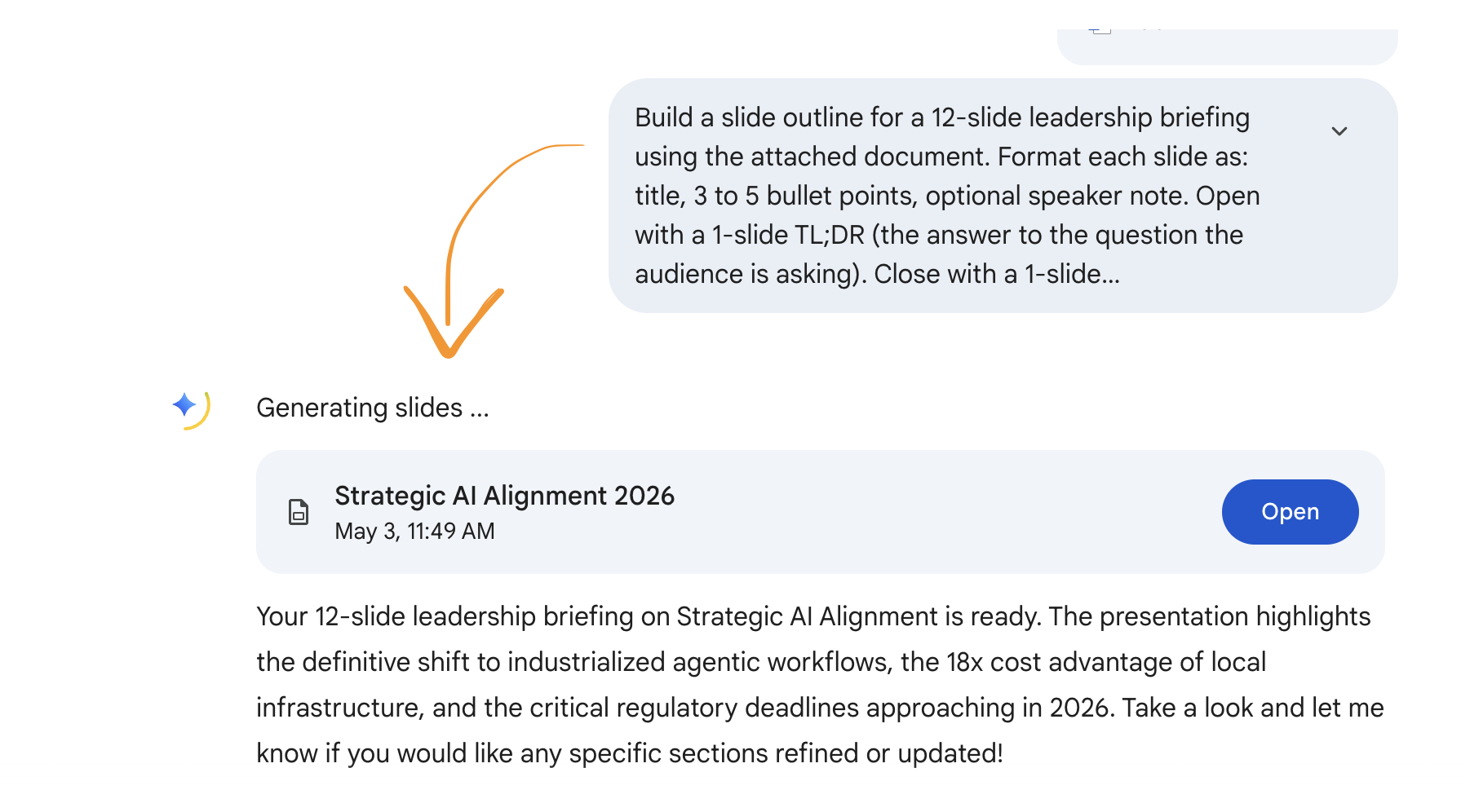
Back in Gemini, start a new chat. Attach the Doc you just exported (paperclip icon, then "Add from Drive"). In the same prompt, write:
|
| |
|
Build a slide outline for a 12-slide leadership briefing using the attached document. Format each slide as: title, 3 to 5 bullet points, no speaker note. Open with a 1-slide TL;DR (the answer to the question the audience is asking). Close with a 1-slide recommendation. Do not pad with "agenda" or "thank you" slides.
|
|
| |
|
Gemini will produce a structured slide-by-slide outline in chat. This is the script. Read it like a story: does each slide earn its spot?
|
| |
|
If two slides should merge, say so in the chat. If the recommendation is weak, push back: "the recommendation slide needs to take a clearer position. Pick a side." Iterate until the script reads the way you'd want to present it.
|
| |
|
Pro tip: Always start with the TL;DR slide. Most presenters bury the lede in slide 6. The audience reads slide 1, decides whether to pay attention, and you've lost them by slide 4 if it's setup.
|
|
| |
|
|
| |
|
Step 5: Generate the deck in Canvas, then export to Slides
|
| |
|
| |
|
Once the script is solid, ask Gemini:
|
| |
|
Now turn this slide outline into a Google Slides presentation. Use the [theme name: Material / Editorial / Minimal] theme. Include relevant chart placeholders where I've called for data visualizations.
|
|
| |
|
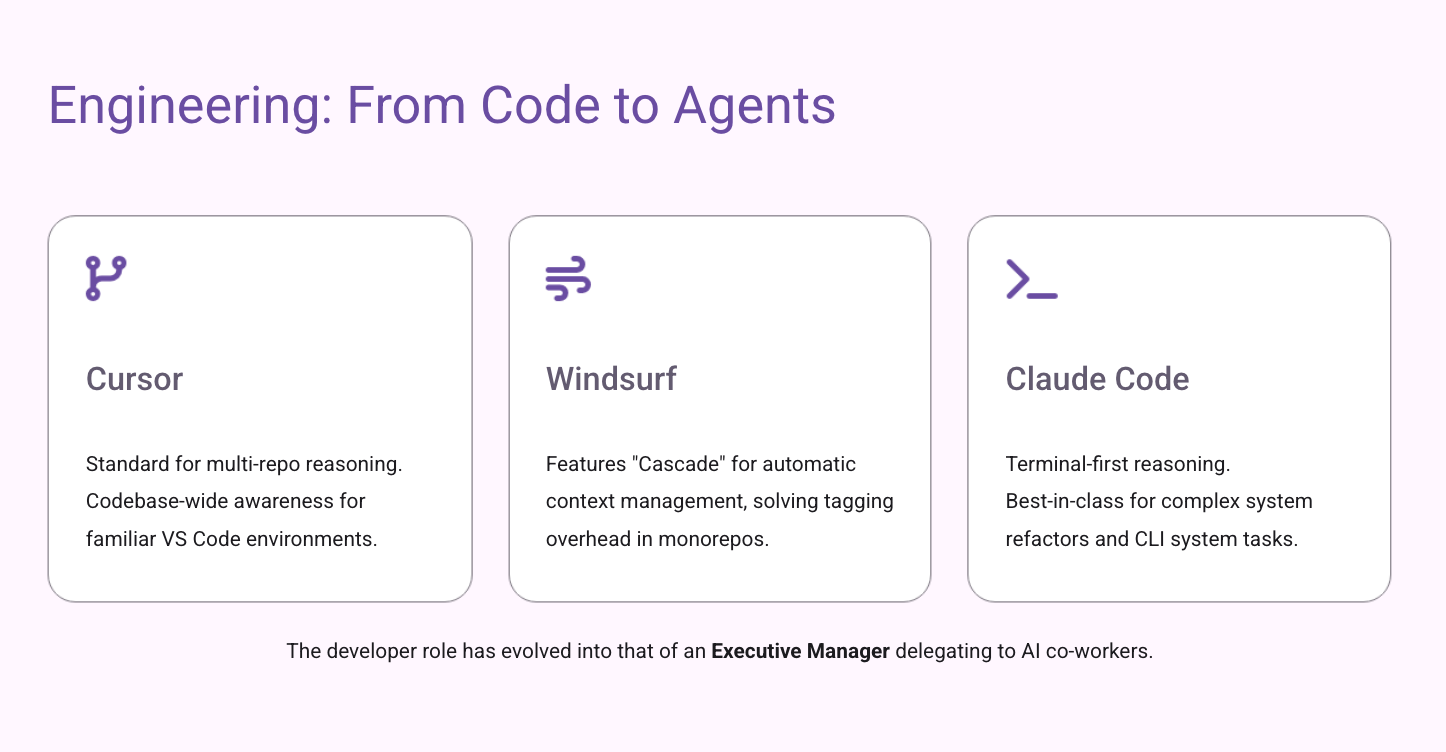
Gemini opens Canvas with the deck inside. You'll see actual slides, not a markdown outline. Click around. The first version will have layout issues (text overflow, weird image placement, chart placeholders that need real data). That's expected.
|
| |
|
Make the structural edits in Canvas first: reorder slides, cut anything weak, ask Canvas to "tighten the bullets on slide 4 to 3 lines max" or "rewrite slide 7 in a more direct tone." When the structure is right, hit the export button.
|
| |
|
Watch out: Canvas sometimes generates 4 sub-bullets where 1 line would do. The default verbosity is too high for a leadership audience. Always tell it the maximum bullets per slide in the prompt, not after.
|
|
| |
|
|
| |
|
Step 6: Export to Google Slides, polish, download as .pptx
|
| |
|
| |
|
Click Share & Export → Export to Google Slides. The deck opens in Slides natively, with all your speaker notes, layouts, and content intact.
|
| |
|
This is where you do the human polish: fix any layout issues Canvas didn't get right, drop in real charts (not the placeholders), add your company branding if it's an external presentation. The deck Canvas built is 80% of the way there. The last 20% is taste, and that part is still yours.
|
| |
|
If you need .pptx for a Microsoft 365 audience, do it from Slides: File → Download → Microsoft PowerPoint (.pptx). Gemini does not export to .pptx directly yet, which is a 30-second annoyance, not a blocker.
|
| |
|
Pro tip: Save the polished deck as a Slides template in your Drive. Next time you need a similar briefing, "duplicate, replace content" is faster than starting from a fresh Canvas run. The structure is the asset.
|
|
| |


